Linux Disk Management: Partitioning, Formatting, and Mounting
Checking Installed Disks
- You can use the ls command to display information about hard disks installed in your computer.
- /dev/sda, /dev/sdb, etc. are hard disks, and /dev/sda1, etc. are partitions.
# ls -l /dev/sd*
brw-rw----. 1 root disk 8,  0 Oct 16 13:12 /dev/sda
brw-rw----. 1 root disk 8,  1 Oct 16 13:12 /dev/sda1
brw-rw----. 1 root disk 8,  2 Oct 16 13:12 /dev/sda2
brw-rw----. 1 root disk 8, 16 Oct 16 13:12 /dev/sdb
brw-rw----. 1 root disk 8, 32 Oct 16 13:12 /dev/sdc
You can check the file system in the following two ways.
- df -T: Check the file system of mounted partitions
- blkid /dev/sd*: Check the file system of all partitions
Creating Partitions
- The command to manage partitions is fdisk.
- If you want to manage the partitions of /dev/sdb, use the following commands.
# fdisk /dev/sdb
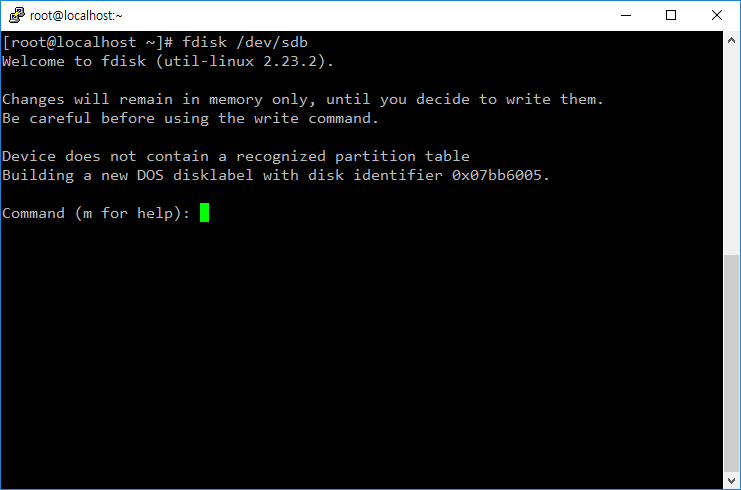
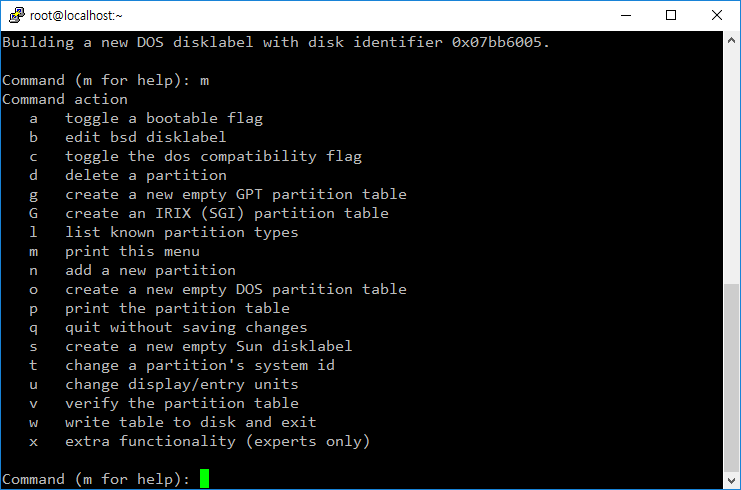
- If you need help, type m.
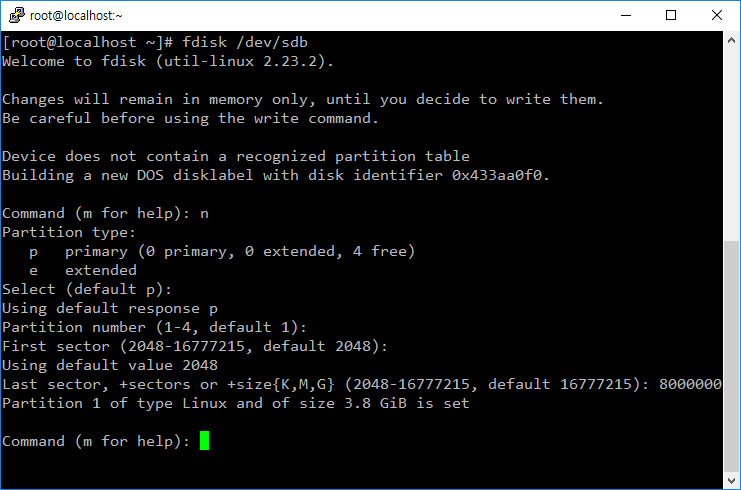
- To create a new partition, type n and follow the prompts.
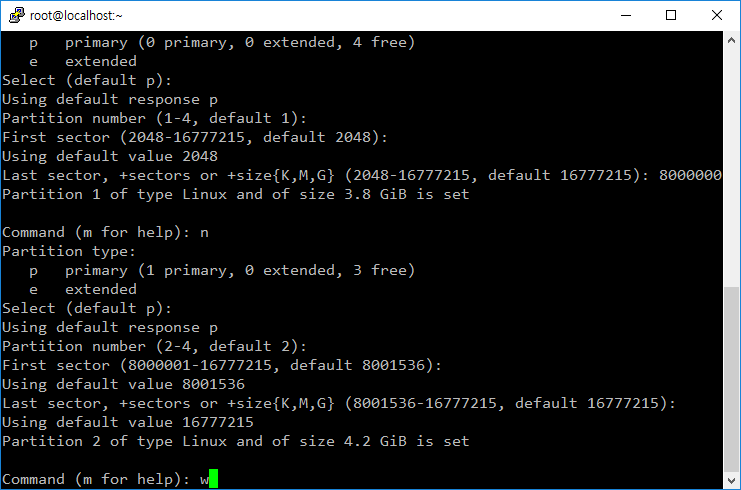
- Type w to apply the changes.
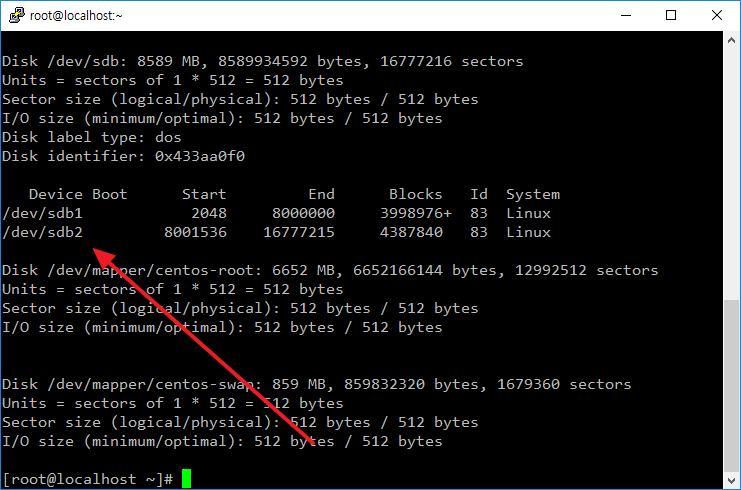
If you try to create a partition on a hard disk over 2TB, for example a 4TB hard disk, you will see a message like the following and will not be able to use the entire disk.
The size of this disk is 4 TiB (4398046511104 bytes). DOS partition table format cannot be used on drives for volumes larger than 2199023255040 bytes for 512-byte sectors. Use GUID partition table format (GPT).
In such a case, type g to create a GPT partition table and then make the partition.
Command (m for help): g
Created a new GPT disklabel (GUID: F13C6D0D-1E30-4448-B015-A61F3AE9EA48).
Formatting
- The command to format is mkfs. For example, to format the /dev/sdb1 partition with the ext4 file system, use the following command.
# mkfs.ext4 /dev/sdb1
- To format to the xfs file system, use the following command.
# mkfs.xfs -f /dev/sdb1
Mounting
- You need to attach the partition to a specific directory to be able to use that partition.
- For example, to mount /dev/sdb1 to the /mnt directory, use the following command.
# mount /dev/sdb1 /mnt
- To unmount, use the umount command. There are two methods.
# umount /dev/sdb1
# umount /mnt
- To have it automatically mount at boot, add the following code to the /etc/fstab file.
- This means to mount the /dev/sdb1 partition to the /mnt folder. Adjust options such as the file system as appropriate.
/dev/sdb1 /mnt xfs defaults 0 0
- If you want to immediately apply the changes made to the fstab file, use the following command.
# mount -a
Using UUID
A hard disk gets a name like /dev/sdb, and a partition gets a name like /dev/sdb1, but these names are not fixed. If you change the hard disk's mounting location or the recognition order changes, those names can also change. In such cases, mounting may not work properly. Therefore, when using fstab to mount, it is better to use the hard disk's unique value, the UUID.
- You can check the UUID with the blkid command.
# blkid
/dev/sda1: UUID="69d9add5-2153-4bc2-ad99-1560fb205c4b" TYPE="ext4" PARTUUID="aa61ba4b-01"
/dev/sda2: UUID="PuMuNg-5YHg-qikJ-tc10-iPIM-7W1q-4fUqyc" TYPE="LVM2_member" PARTUUID="aa61ba4b-02"
/dev/mapper/cl-root: UUID="79c8cfcb-c9e2-4243-8cf2-cf10eab57c40" TYPE="xfs"
/dev/mapper/cl-swap: UUID="b69a5fc3-98db-4a27-b3d4-a7ef76244ad1" TYPE="swap"
/dev/mapper/cl-home: UUID="fd372a6b-ee76-41d6-b7e6-6e6a7cf8193b" TYPE="xfs"
/dev/sdb1: UUID="fd95c93f-03fc-418a-a6db-c26b921ec93b" TYPE="xfs" PARTUUID="e5f55ef6-01"
- When adding mount information to /etc/fstab, include the UUID information as follows.
UUID=fd95c93f-03fc-418a-a6db-c26b921ec93b /home xfs defaults 0 0

Linux fsck Command: Check and Repair Filesystems
Learn how to check and Repair Filesystems with the Linux fsck command, including practical examples, key options, and important precautions.

Linux unzip Command: List and Extract ZIP Archives
Learn how to list and Extract ZIP Archives with the Linux unzip command, including practical examples, key options, and important precautions.

Linux traceroute Command: Trace Routers on the Way to a Host
Learn how to trace Routers on the Way to a Host with the Linux traceroute command, including practical examples, key options, and important precautions.

Linux pgrep Command: Find Process IDs by Name or Criteria
Learn how to find Process IDs by Name or Criteria with the Linux pgrep command, including practical examples, key options, and important precautions.

Linux history Command: Review and Reuse Shell Command History
Learn how to use the Linux history command to review, search, reuse, and manage shell command history, with essential options, practical examples, output interpretation, and common troubleshooting tips.

Linux column Command: Format Text as a Table
Learn how to format Text as a Table with the Linux column command, including practical examples, key options, and important precautions.

Linux realpath Command: Resolve Absolute and Canonical Paths
Learn how to use the Linux realpath command to resolve relative paths, symbolic links, and redundant path components, with essential options, practical examples, output interpretation, and common troubleshooting tips.

Linux getent Command: Query Users, Groups, and Other NSS Databases
Learn how to query Users, Groups, and Other NSS Databases with the Linux getent command, including practical examples, key options, and important precautions.

Linux apt-get Command: Run APT Package Operations in Scripts
Learn how to run APT Package Operations in Scripts with the Linux apt-get command, including practical examples, key options, and important precautions.

Linux zypper Command: Manage Packages on openSUSE and SUSE
Learn how to manage Packages on openSUSE and SUSE with the Linux zypper command, including practical examples, key options, and important precautions.