Rocky Linux Administration Memo: Essential Commands and Configuration Notes
How to Change the SSH Connection Port
For example, if you want to change the SSH connection port from 22 to 50022, in /etc/ssh/sshd_config, change the following
#Port 22
as shown below and
Port 50022
restart the service.
# systemctl restart sshd
If SELINUX is enabled, use the following command to allow the use of port 50022.
# semanage port -a -t ssh_port_t -p tcp 50022
If you are using a firewall, open port 50022.
# firewall-cmd --permanent --zone=public --add-port=50022/tcp
# firewall-cmd --reload
If you want to use Wi-Fi
If you want to use Wi-Fi, install the NetworkManager-wifi package.
# dnf install NetworkManager-wifi
How to set password complexity
Edit the following file.
/etc/security/pwquality.conf
The contents of the file are as follows.
# The check is disabled if the value is 0.
# maxclassrepeat = 0
#
# Whether to check for the words from the passwd entry GECOS string of the user.
# The check is enabled if the value is not 0.
# gecoscheck = 0
#
# Whether to check for the words from the cracklib dictionary.
# The check is enabled if the value is not 0.
# dictcheck = 1
#
# Whether to check if it contains the user name in some form.
# The check is enabled if the value is not 0.
# usercheck = 1
#
# Length of substrings from the username to check for in the password
# The check is enabled if the value is greater than 0 and usercheck is enabled.
# usersubstr = 0
#
# Whether the check is enforced by the PAM module and possibly other
# applications.
# The new password is rejected if it fails the check and the value is not 0.
# enforcing = 1
#
# Path to the cracklib dictionaries. Default is to use the cracklib default.
# dictpath =
#
# Prompt user at most N times before returning with error. The default is 1.
# retry = 3
#
# Enforces pwquality checks on the root user password.
# Enabled if the option is present.
# enforce_for_root
#
# Skip testing the password quality for users that are not present in the
# /etc/passwd file.
# Enabled if the option is present.
# local_users_only
How to install in text mode
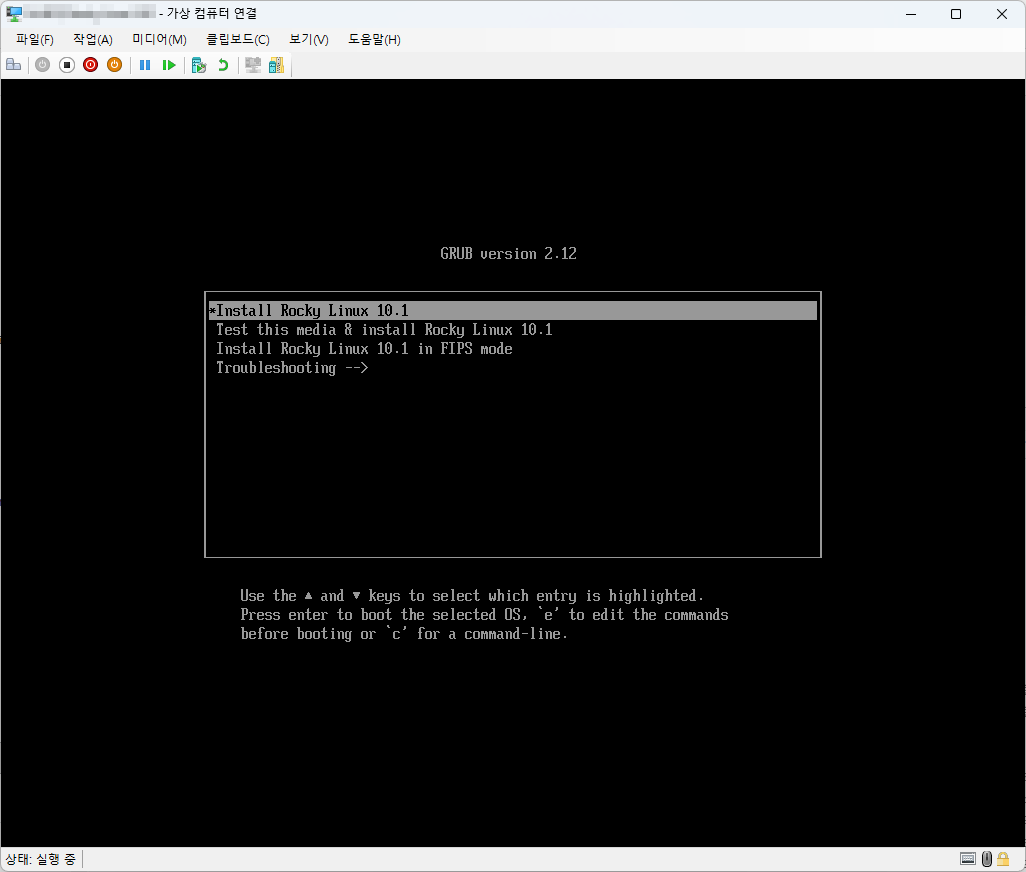
- When the following screen appears, enter e.
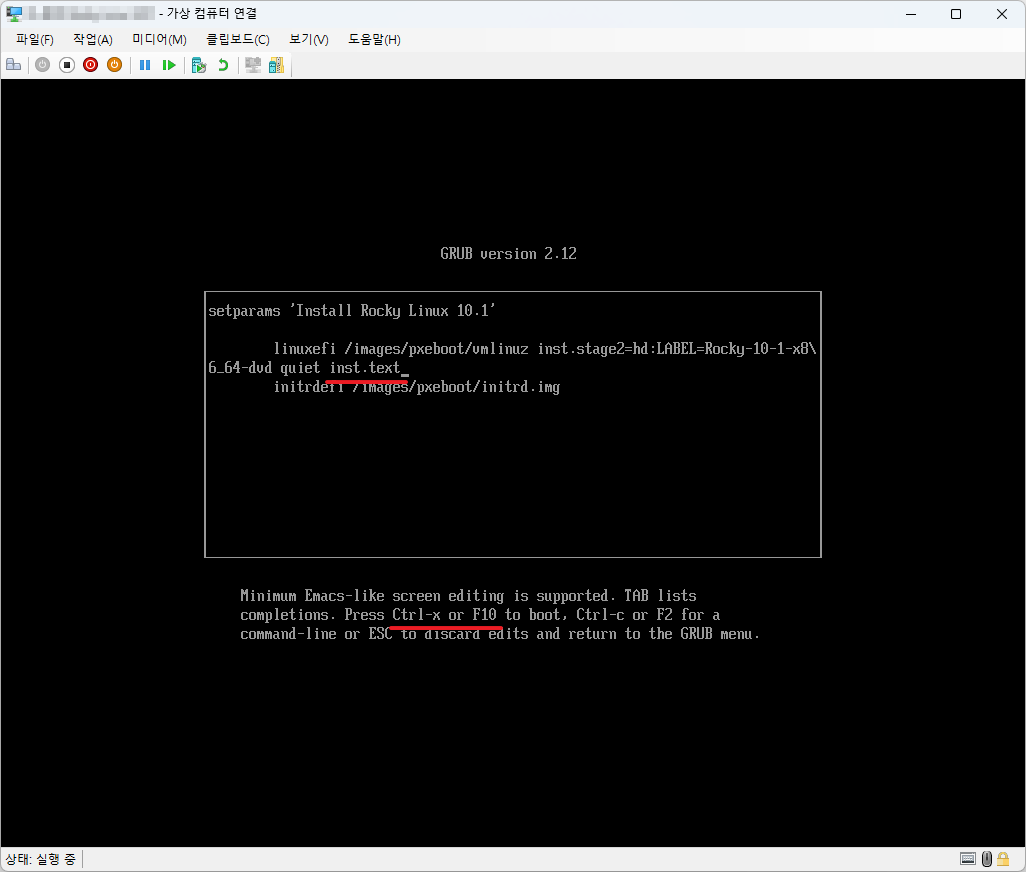
- Add inst.text.
- Press Ctrl + X or F10.
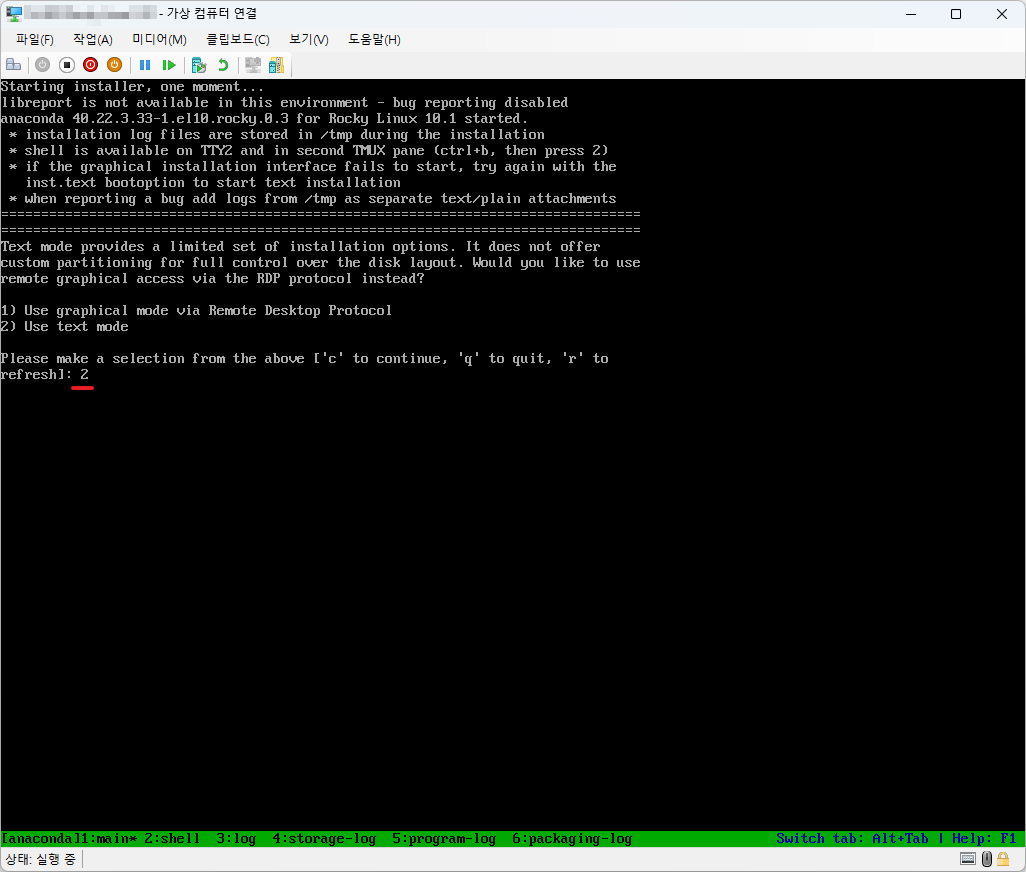
- Enter 2.
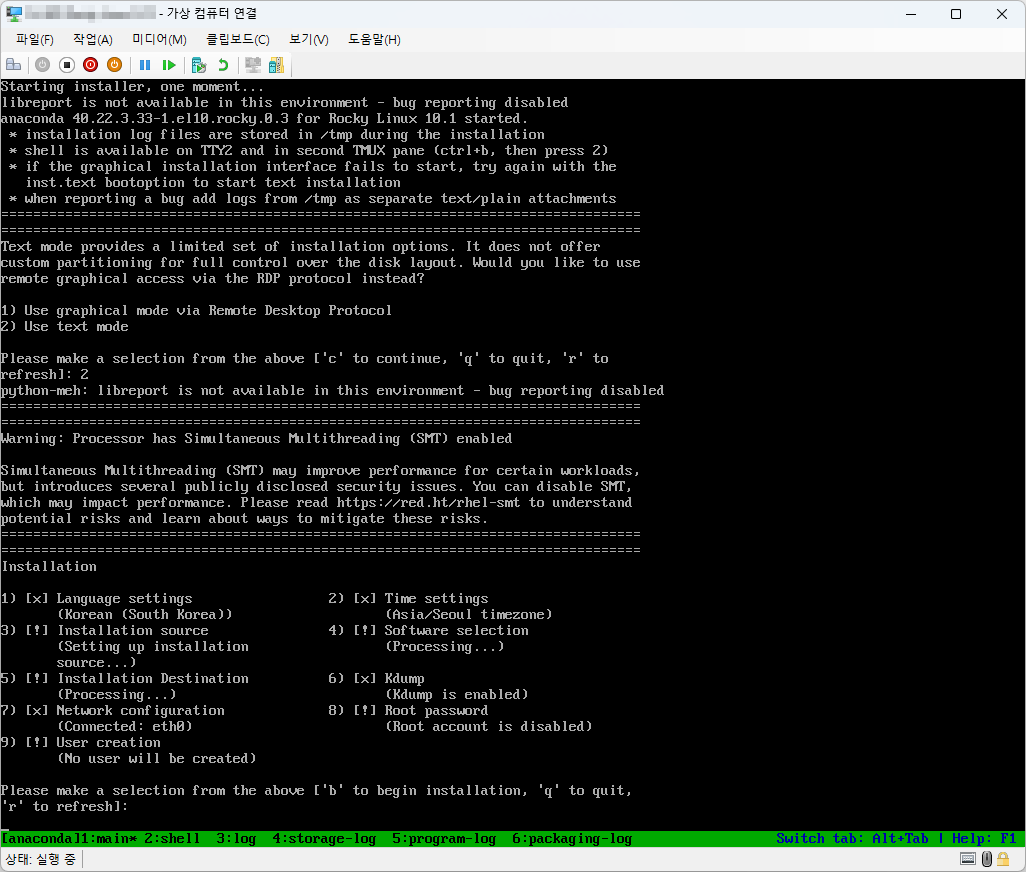
- The installation will proceed in text mode.

How to Change the Hostname on Rocky Linux
Learn how to change a Rocky Linux hostname with hostnamectl, verify the persistent setting, and check name resolution and services afterward.

Rocky Linux Administration Memo: Essential Commands and Configuration Notes
A practical Rocky Linux administration reference covering packages, services, networking, storage, security controls, logs, and frequently used maintenance commands.

How to Manage firewalld on Rocky Linux: Zones, Services, and Ports
Learn how to manage firewalld on Rocky Linux with firewall-cmd, including active zones, services, custom ports, runtime and permanent rules, rich rules, and NetworkManager integration. The guide emphasizes a safe workflow for remote SSH servers.

How to Change the System Language and Locale on Rocky Linux
Learn how to check and change the system-wide language and locale on Rocky Linux with localectl and glibc language packs. This guide also explains session-only changes, LANG and LC_* precedence, and troubleshooting for broken Korean characters.

How to Install PostgreSQL on Rocky Linux
Install PostgreSQL on Rocky Linux, initialize the database cluster, enable the service, create a database and user, and review network and authentication settings.

How to Use DNF on Rocky Linux: Packages, Repositories, and Updates
Use DNF on Rocky Linux to search, install, remove, update, and inspect packages and repositories while keeping package-management changes controlled.

How to Configure Root SSH Login on Rocky Linux Safely
Review how root SSH login is controlled on Rocky Linux, why direct root access is risky, and how to change and verify sshd settings without losing remote access.

How to Configure a Static IP Address on Rocky Linux
Configure and verify a static IPv4 address on Rocky Linux with NetworkManager, including the gateway, DNS servers, connection profile, and safe remote-change checks.

How to List Installed Packages on Rocky Linux
Use DNF and RPM to list, search, count, and inspect installed packages on Rocky Linux and identify which package owns a file.

How to Install MariaDB on Rocky Linux
Install MariaDB on Rocky Linux, enable the database service, complete the initial security setup, create a database and account, and verify access.