Linux diff Command: Compare Text Files and Directories
The diff command compares two text files or directory trees and reports how they differ. Unified output from diff -u includes surrounding context and is widely used for patches, code review, and configuration comparison.
This guide explains the basic syntax, key options, practical examples, related commands, common cautions, and frequently asked questions for diff.
What Is the diff Command?
Diff computes line-oriented changes that transform the first input into the second. No output normally means no reportable difference. Exit status 0 means equal, 1 means differences were found, and 2 means trouble, so status 1 is a valid comparison result rather than a generic execution error.
Basic Syntax
diff [OPTION]... FILE1 FILE2
diff [OPTION]... DIRECTORY1 DIRECTORY2
Options and edge cases can vary by implementation and version. Check diff --help and man diff on the target system before relying on implementation-specific behavior.
Basic diff Usage
Compare two files
The default format describes line changes using traditional diff notation.
diff old.conf new.conf
Produce unified output
The unified format shows changed lines with surrounding context and is easier to review.
diff -u old.conf new.conf
Compare directories recursively
Add -r to descend into corresponding subdirectories.
diff -ru project-old project-new
Reading Change Indicators and Exit Status
diff -u shows the differing lines of two files in unified format. In the example below, old from the first file is changed to new in the second file.
printf 'old\n' > before.txt
printf 'new\n' > after.txt
diff -u before.txt after.txt
Key parts of the output (file header times are omitted):
-old
+new
- indicates lines only in the first file, + indicates lines only in the second file. If the two files differ, the exit status is 1, so distinguish this from execution failure status 2.
Key Options
| Option | Purpose |
|---|---|
-u |
Produce unified output with context. |
-r, --recursive |
Recursively compare subdirectories. |
-q, --brief |
Report only whether files differ. |
-s |
Report identical files as well. |
-w |
Ignore all whitespace differences. |
-b |
Ignore changes in the amount of whitespace. |
-i |
Ignore letter-case differences. |
--color=auto |
Color terminal output in supported GNU versions. |
Practical Examples
Create a patch file
Use stable relative paths when the patch must be applied in another working tree.
diff -u original.conf modified.conf > config.patch
Summarize directory differences
The -qr combination reports differing and one-sided files without printing every changed line.
diff -qr release-a release-b
Ignore only spacing-width changes
Use this only when whitespace is not semantically important; indentation-sensitive languages require extra care.
diff -u -b before.txt after.txt
diff and Related Commands
| Command | Primary role | Best fit |
|---|---|---|
diff |
Line-oriented text differences | Source, configuration, and directory trees |
cmp |
Byte-oriented first difference | Equality and offset checks |
git diff |
Repository-aware differences | Git worktrees and commits |
comm |
Set-like comparison of sorted lines | Unique and common records |
Important Cautions
Exit status 1 means different
Treat it as a normal comparison outcome; status 2 indicates an actual problem.
Detailed binary diffs are not line-friendly
Use cmp or a checksum tool when byte equality is the main question.
Whitespace options can hide meaningful changes
Do not ignore indentation or spacing when the file format gives it semantic meaning.
FAQ
What does empty diff output mean?
The inputs have no reportable differences under the selected options.
Which output format is easiest to read?
Unified output from diff -u is usually the most convenient.
Can diff compare entire directories?
Yes. Use -r for recursive comparison.
Is exit code 1 an error?
No. It normally means differences were found; code 2 indicates trouble.
Related Resources

Linux su Command: Switch User Accounts and Login Shells
Learn how to use the Linux su command to switch user accounts and start login or non-login shells, with essential options, practical examples, output interpretation, and common troubleshooting tips.
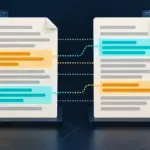
Linux diff Command: Compare Text Files and Directories
Learn how Linux diff compares text files and directories, produces unified patches, ignores selected whitespace changes, and reports differences through exit status.
Linux parted Command: Inspect and Manage Partitions
Learn how to inspect and Manage Partitions with the Linux parted command, including practical examples, key options, and important precautions.

Linux Tutorial / Install and Update Packages with APT and DNF
Compare APT on Debian or Ubuntu with DNF on Rocky Linux for searching, installing, updating, and removing packages, including repository and transaction checks.

Linux cp Command: Copy Files and Directories
Learn how to copy files and directories with Linux cp, control overwrites, preserve attributes, handle symlinks, and verify important copies.

Linux bzip2 Command: Compress a File in bzip2 Format
Learn how to compress a File in bzip2 Format with the Linux bzip2 command, including practical examples, key options, and important precautions.

Linux nc Command: Test TCP and UDP Connections
Learn how to test TCP and UDP Connections with the Linux nc command, including practical examples, key options, and important precautions.

Linux time Command: Measure Command Execution Time
Learn how to use the Linux time command to measure elapsed, user CPU, and system CPU time for a command, with essential options, practical examples, output interpretation, and common troubleshooting tips.

Linux renice Command: Change the Priority of a Running Process
Learn how to change the Priority of a Running Process with the Linux renice command, including practical examples, key options, and important precautions.

Linux help Command: Read Help for Bash Built-in Commands
Learn how to use the Linux help command to read usage information for Bash built-in commands, with essential options, practical examples, output interpretation, and common troubleshooting tips.